
March 23, 2026
This article explains how to link receipts (such as invoices and receipts) to transactions in the cash book.
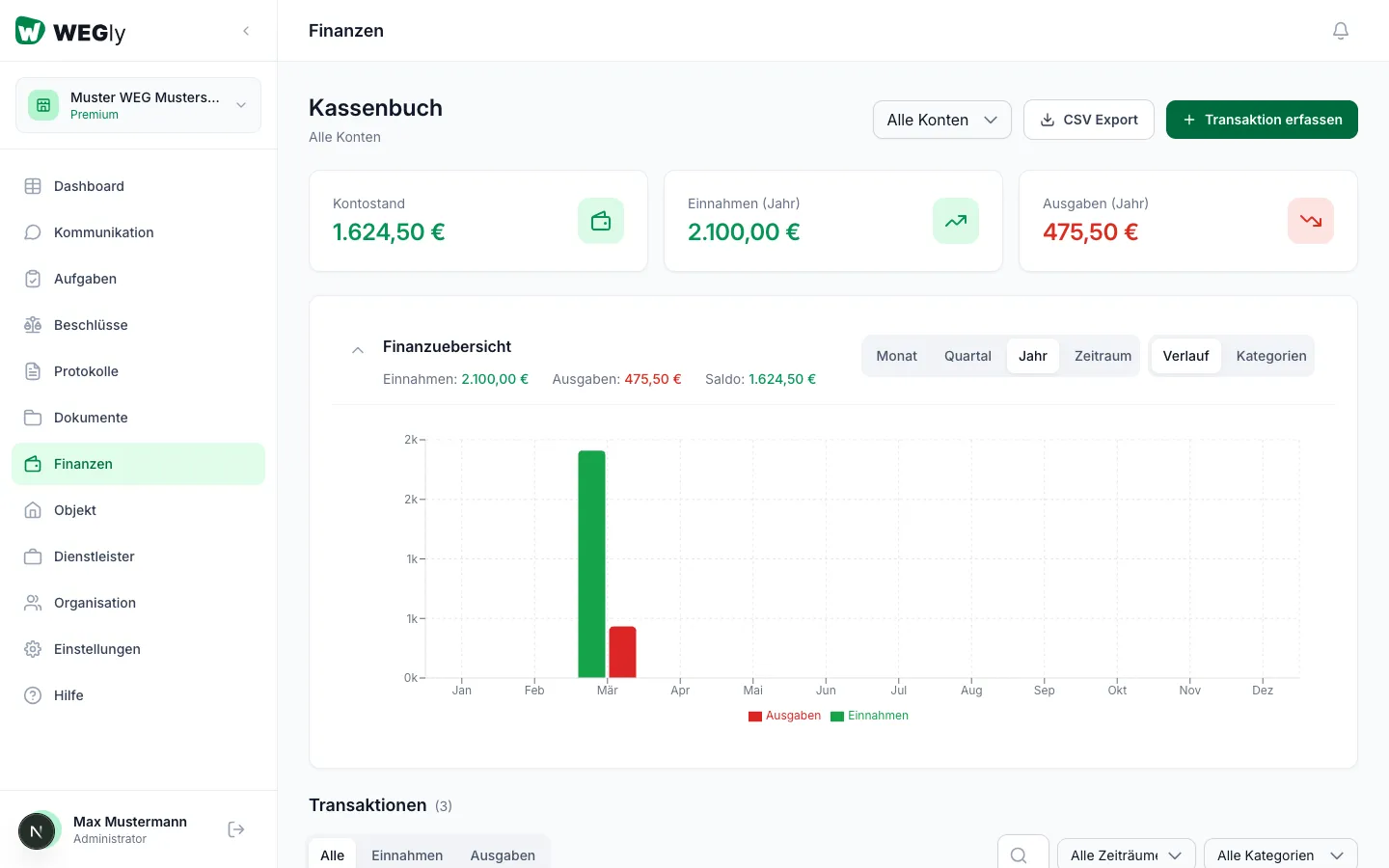
How it works
Receipts serve as proof for expenses. In WEGly you can attach receipts directly to transactions. A separate document folder is not needed.
Attaching a receipt when recording a transaction
- Navigate to Finance in the sidebar.
- Click Record transaction.
- Fill in the required fields (amount, category, date, description).
- Click Upload receipt in the form or drag the file into the receipt field.
- Select the receipt file (PDF, JPG, or PNG).
- Click Save.
Adding a receipt to an existing transaction
- Click on a transaction in the list.
- The detail panel opens.
- Click Edit transaction.
- Upload the receipt in the Receipt field.
- Save the change.
Viewing and downloading a receipt
Click on a transaction that has a receipt. In the detail panel you will see a preview of the receipt. Click Download to save it as a file.
Tips
- Upload receipts immediately after paying. Photograph paper receipts with your phone and upload the image as a JPG.
- Receipts are especially important for expenses that need to be justified to other owners.
- In the annual statement, the CSV export shows which transactions have receipts.
Frequently asked questions
Can I remove a receipt from a transaction? Yes. Open the transaction via Edit transaction and remove the receipt using the X symbol next to the file.
Where are receipts stored? Receipts are stored directly on the transaction and are not visible in the documents area. They are only accessible through the respective transaction.